Actions from note toolbar:
Click
 button deletes the note of the item to Deleted Items.
Click  button switches the note
preview mode on.
button switches the note
preview mode on.
Click
 opens the item, which the note is linked to. If the
item is already opened, the form of the item will be brought to front.
opens the item, which the note is linked to. If the
item is already opened, the form of the item will be brought to front.
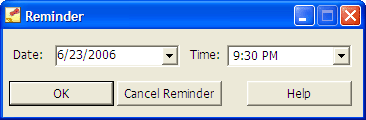
Click  button opens the Reminder
form,
where user can set date, time of reminder, or to cancel already created
one. For set reminder the reminders icon with reminder date
and time in the mouse tip
is displayed in the bottom part of the note form.
button opens the Reminder
form,
where user can set date, time of reminder, or to cancel already created
one. For set reminder the reminders icon with reminder date
and time in the mouse tip
is displayed in the bottom part of the note form.
Click  button lets to switch the option to show the note on the
top of Outlook explorer window. The value of this option is valid only
for current note. The default value of the option can be defined in the Notes2 Options
form.
button lets to switch the option to show the note on the
top of Outlook explorer window. The value of this option is valid only
for current note. The default value of the option can be defined in the Notes2 Options
form.
To manage note text actions:
Use
 buttons to cut, copy, paste, clear all text, copy
all text, and to undo last applies to text action.
buttons to cut, copy, paste, clear all text, copy
all text, and to undo last applies to text action.
To manage font and background appearance:
Use  buttons to change the font, the background color of the current
note. The default value of these options can be defined in the
Notes2 Options
form.
buttons to change the font, the background color of the current
note. The default value of these options can be defined in the
Notes2 Options
form.
To manage note attachments:
Use  buttons to attached/detached the files to/from the note.
If note has attached files, the attachment icon and the number
of attached file
are displayed. Clicking this attachment icon the attachment section
is shown in the bottom part of the note form. Clicking on the name of
attached file in the attachment section, the selected file will be opened
(if attachment has unknown type, the standard "Select program"
dialog is opened ).
buttons to attached/detached the files to/from the note.
If note has attached files, the attachment icon and the number
of attached file
are displayed. Clicking this attachment icon the attachment section
is shown in the bottom part of the note form. Clicking on the name of
attached file in the attachment section, the selected file will be opened
(if attachment has unknown type, the standard "Select program"
dialog is opened ).
Click  button to open "Save As..". dialog for selected
attachment in the attachment section.
button to open "Save As..". dialog for selected
attachment in the attachment section.
To print the note:
Click
 button to print the current note.

